Protected: CMS Manual: News Posts
CMS Manual: News Posts
News Posts
The “News” tab within the dashboard is used to create and manage News posts.

You can search the existing library of News posts by selecting “News.” Search for a post using the search bar in the upper right. Scroll through the list more easily by sorting by category (Published, Drafts). Filter by “date” or “category” using the pull-down filters.

Editing a News Post
Find your News Post in the list of posts. Hover over the title and then click “edit”. You can also delete, clone, and Rewrite/Republish a post from this hover menu.

-or-
Go to the News Item you want to edit on the website and click “Edit News” in the top menu of options. This will only be present if you are logged into WordPress

Creating a News Post
In the dashboard, hover over “News” and click “Add New.”

-or-
When in the list of “All News” click “Add New” at the top left of the page above the sorting categories

Building a News Post
Once on the editing form, begin by adding a Title. The “Title” appears at the top of the page, and in search results. The first time you update the editing form, a title will be used to create a permalink. You can edit this link, for example, to remove words like “the”.


Creating the Metadata associated with a News Post
When creating a News post, you’ll need to create some metadata that will be associated with this News post when it is searched for or referenced elsewhere on the website.
Add a “Featured Image”
The Featured Image will be displayed on the Newsroom page. If empty, the “Default Post Image” in News Options will be displayed on the Newsroom page.
Add a “Header Image”
If present, this image will be used in the page header. Otherwise, an image will not be used.
Add an “Excerpt”
The Excerpt is a short summary of what the News post is about. It will not show on the actual News post, but will show when the News post is referenced in blocks like “Card Callouts” or “Featured Colored Callouts.”
Select a “Display Author”
Select an “Author” from the Display author dropdown list. If you cannot find the author you are looking for, a new one can be added through the “People” section of the Dashboard

Creating the Content of a News Post
A “Mews” post can be built much like a page. It has several flexible blocks for you to choose from by clicking “Add Block.” Those include:
- Content Block
- Collections Grid
- Content Grid
- Color Block Quote
- Featured Color Callout
- Image Callout Grid
- Card Callout
- Image Slider
- Downloadable Content

Choose a Category
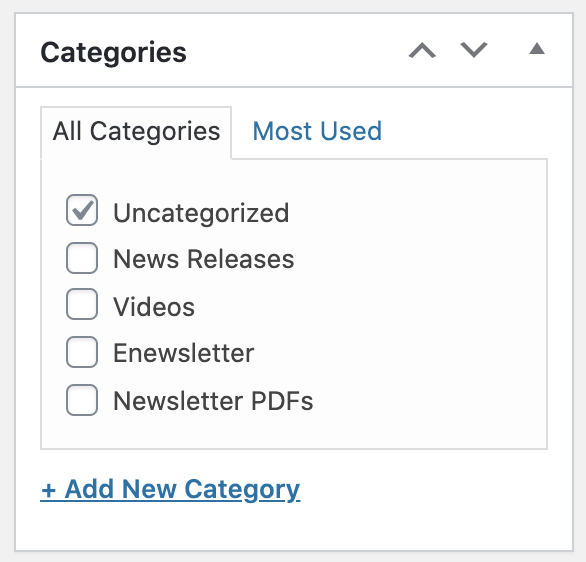
In the right rail of the back-end editing form of a News post, you should select a category. This metadata will help the post be in the right place in the Newsroom, and will help for searching and filtering in the dashboard on the back-end.
News Post Categories
Administrators will have access to the “Categories” section of the News section of the dashboard. Here you can add new Categories that will appear as possible metadata on the back-end editing form of an individual News post and will also appear on the front-end as Newsroom tabs.

News Options
The “News Option” section of the News section of the dashboard is where the Newsroom page is managed. That page automatically pulls in individual news posts, but the Header Image, Lede Content, and default image for individual news posts that do not have one are all managed here.