Protected: CMS Manual
WAM CMS Basics
Using your CMS:
https://wam.org/wp/wp-admin/
The Dashboard:
Once you have logged in, you will arrive at the dashboard. The dashboard shows an overview of the site and has a navigation menu down the left-hand side of the page

Across the top is the WordPress bar with a link to the homepage of the Wichita Art Museum website on the left, and your username on the right.

If you hover your username, you’ll get a list of options:
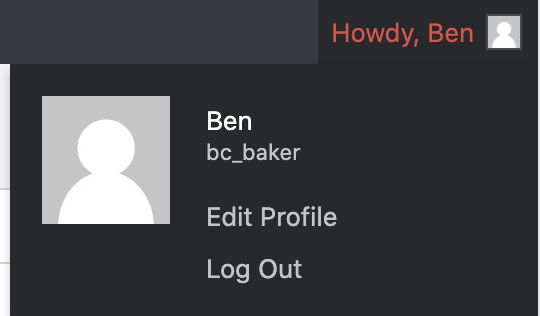
Username (bc_baker in above image)
- Will take you to your Profile, where you can customize the look and feel of WordPress some, and also edit your overall profile. You can also navigate to this edit screen under “Users -> You Profile” in the left-hand side of the dashboard.
Log Out
- This will log you out of WordPress
Switch Off
- This will allow you to switch to a different user if you have different credentials
Sections of the Dashboard
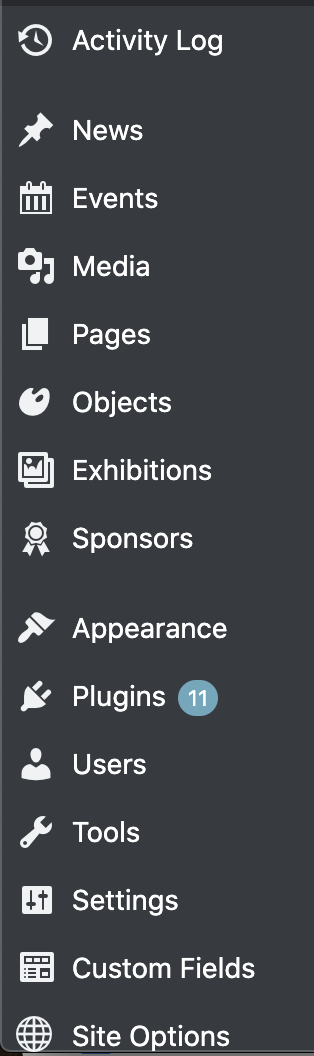
* note: not all users will have the same dashboard due to user account permissions.
Activity Log
The “Activity Log” is a running list of actions taken by all users in the backend CMS of the website
News
The “News” section of the dashboard allows users to create and manage News posts
Events
The “Events” section of the dashboard allows user to create and manage Event posts
Media
The “Media” section of the website allows users to access the Media Library and manage all media (images, videos, files) on the website
Pages
The “Pages” section of the website allows users to create and manage all pages (not posts)
Objects
The “Objects” section is where all collection objects are managed
Exhibitions
The “Exhibitions” section of the dashboard allows user to create and manage Exhibition information
Sponsors
The “Sponsors” section of the dashboard allows user to create and manage Sponsor information
Appearance
The “Appearance” section of the dashboard is only accessible by users with “admin” level access. This is where the site theme and menus are managed
Plugins
The “Plugins” section of the dashboard is only accessible by users with “admin” level access. This is where all plugins are managed
Users
The “Users” section of the dashboard is only accessible by users with “admin” level access. This is where the site user accounts are managed
Tools
The “Appearance” section of the dashboard is only accessible by users with “admin” level access. This is where the site theme and menus are managed
Settings
The “Settings” section of the dashboard is only accessible by users with “admin” level access. This is where the site settings, like permalinks and search are managed.
Custom Fields
The “Custom Fields” section of the dashboard is only accessible by users with “admin” level access. This is where the site Custom Fields are managed. This section should not need to be accessed
Site Options
The “Site Options” section of the dashboard is only accessible by users with “admin” level access. This is where the site options (global and color theme) are managed. This section should not need to be accessed